
Project Sidebar
Overview
The Project Sidebar is the central navigation hub of your project workspace. It provides quick access to every major tool and panel you need while working — from file management and version control to AI chat sessions, task tracking, deployments, and more. Every panel opens as a slide-out overlay so you can jump between tools without leaving your current view.
The sidebar runs along the right edge of the project workspace and contains icon buttons for each panel. Clicking an icon opens that panel's overlay, and clicking it again (or pressing Escape) closes it. The sidebar is always visible and serves as the primary way to interact with your project's tooling.
Available Panels
The sidebar contains the following panels, each documented in detail in the sections below:
Favorites
Star and organize your most-used project files for instant access.
Chat
Manage AI chat groups, agent sessions, and conversation history.
GitHub
View repository status, branches, commits, and manage pull requests.
Tasks
Track project tasks, assign priorities, and manage your workflow.
Deployments
Monitor and trigger deployments to your configured hosting providers.
History Calendar
Browse project activity and file changes on a calendar timeline.
Builds
View build logs, status, and output from your project builds.
File Tree
Manage file tree display settings and item-level actions.
Prompt Box
Quick-access prompt input for sending instructions to the AI agent.
Block Group Library
Browse and manage reusable component blocks from your library.
Checked Files
View and manage files currently selected for bulk operations.
Search
Search across your entire project for files, code, and content.
Hide Files
Configure which files and folders are hidden from the file tree.
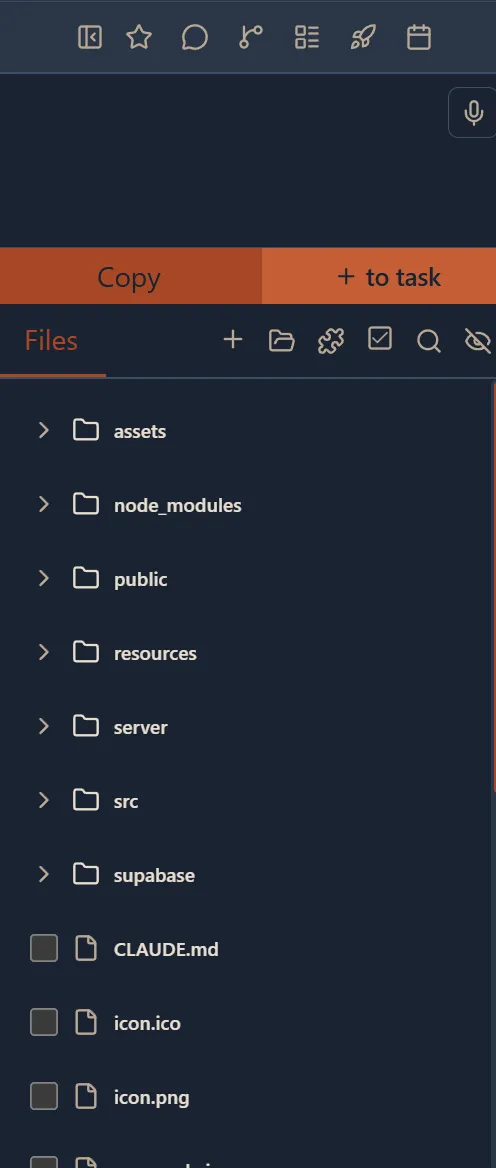
Favorites Panel
Overview
The Favorites Panel is a sidebar overlay that lets you star and organize your most-used project files for quick access. Instead of digging through the file tree every time, mark important files as favorites and find them instantly.
Features
Star Toggle
Click the star icon on any file to add or remove it from your favorites. Starred files appear in the Favorites Panel for quick access.
Group Organization
Organize your favorite files into custom groups. Groups are saved locally so they persist between sessions.
Multi-File Selection
Select multiple favorite files at once and perform bulk actions like adding them all to a task.
Add to Task
Select one or more favorited files and add them directly to a task with a single click, streamlining your workflow.
Favorites Counter
A badge displays the total number of favorited files so you always know how many are saved.

Chat Panel
Overview
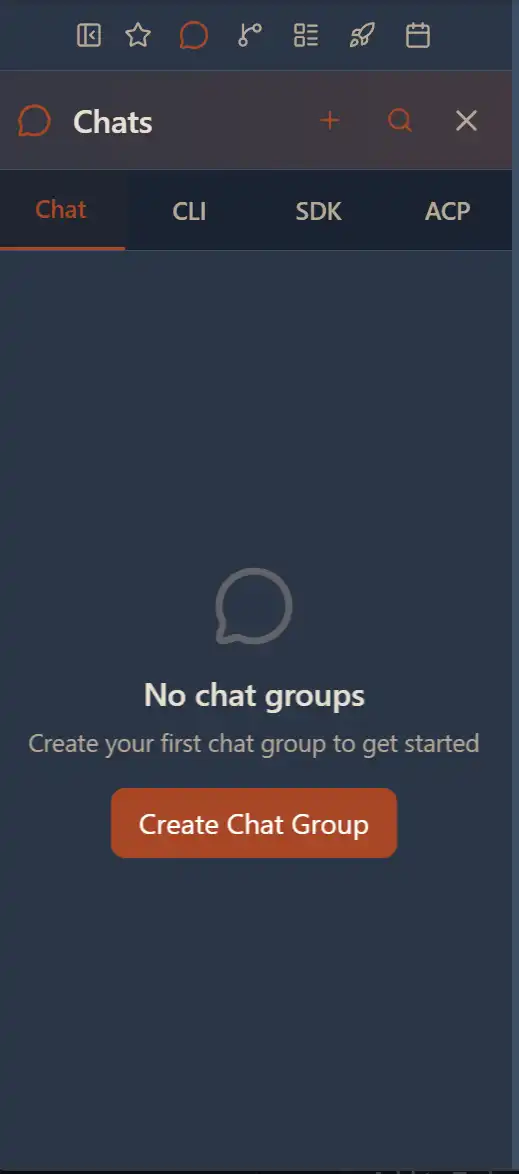
The Chat Panel is a sidebar overlay for managing your AI chat groups and agent sessions. It provides a central place to browse, create, edit, and delete chat conversations, as well as view CLI, SDK, and ACP session logs.
Tabs
Chat
Browse and manage your AI chat groups. Create new groups, rename them, search through existing ones, or delete conversations you no longer need.
CLI
View session logs from CLI-based agents like Claude Code, Gemini CLI, and Codex CLI. Each session shows the agent type with its branded logo.
SDK
View session logs from SDK-based agents including Claude SDK, Gemini SDK, and OpenAI SDK integrations.
ACP
View session logs from ACP (Agent Communication Protocol) agents with their configurations and execution history.
Features
Chat Group CRUD
Create, rename, search, and delete chat groups. Each group can hold a full conversation thread with context.
Pagination
Sessions load 50 items at a time with a "Load More" button for large histories.
Multi-Selection
Use Shift+Click for range selection across sessions. Perform bulk delete or other actions on selected items.
Context Menu
Right-click any session to access quick actions like delete or view detailed logs.
Agent Identification
Each session displays branded logos for the AI agent used (Claude Code, Gemini, Codex, ACP) so you can identify them at a glance.
Task Panel
Overview
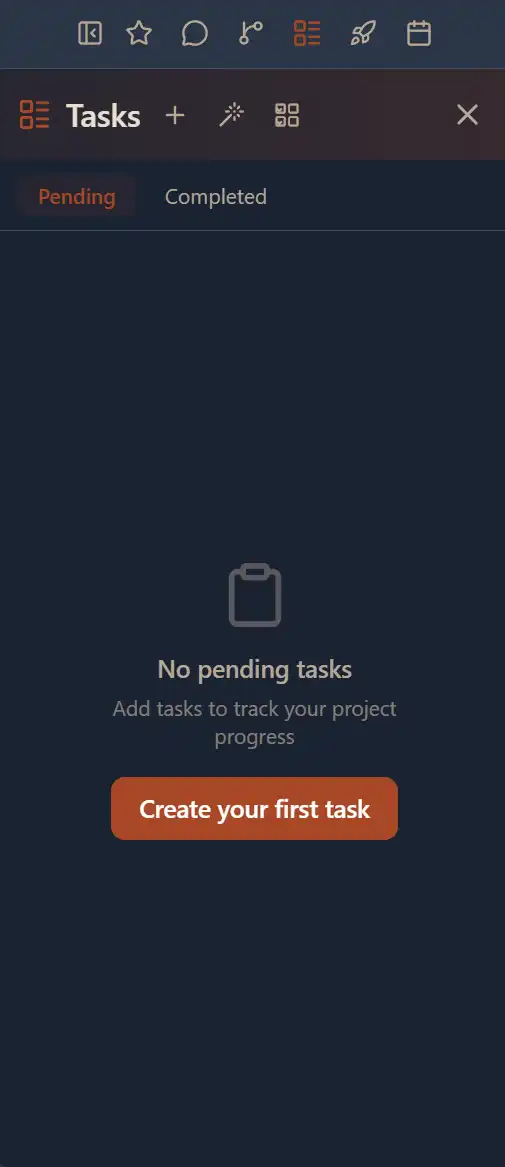
The Task Panel is a sidebar overlay for creating and managing project-level tasks. Each task can include a name, a prompt or instruction, and a selection of project files for context. Tasks help you organize work items and feed them directly to AI agents.
Features
Task Creation
Create tasks with a name, prompt/instruction text, and selected project files. Tasks are scoped to the current project.
File Tree Integration
A resizable file tree panel lets you browse and select project files to attach as context for the task.
Multi-File Selection
Select multiple files to include in a task. The selected files list shows all chosen files with options to remove individual items.
Context Menu
Right-click files in the task file tree for quick actions like adding or removing from the task.
File Watcher
Integrated file watcher automatically detects changes to project files so your task context stays up to date.
Toast Notifications
Visual feedback via toast notifications for successful saves, errors, and informational messages.
Deployments Panel
Overview
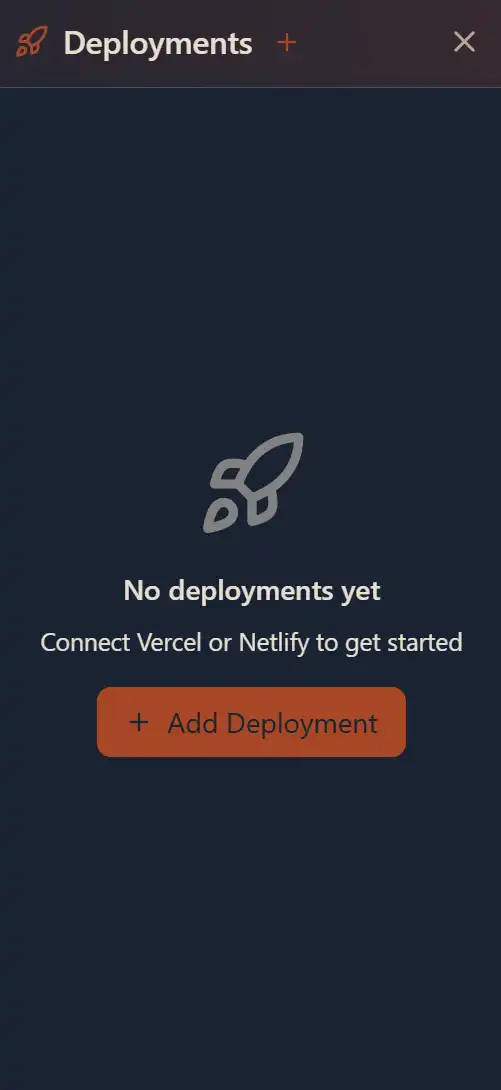
The Deployments Panel is a sidebar overlay for deploying your project to various hosting platforms. The available platforms change depending on your project type, giving you the right deployment options for your stack.
Platform Support by Project Type
Frontend / Web Apps
Deploy static sites, SPAs, and SSR applications.
Backend / Python / API Projects
Deploy server-side applications and APIs.
WordPress Projects
Deploy headless WordPress CMS setups.
Features
Deployment CRUD
Create, view, update, and delete deployments. Each deployment tracks its platform, branch, and git repository configuration.
Auto-Detection
Existing deployments connected to your project are automatically detected and listed when you open the panel.
API Key Management
Manage API keys for each deployment platform. Keys are stored securely and associated with specific deployments.
Platform-Specific Settings
Configure deployment branch, git repository, environment variables, and platform-specific options for each deployment.
Active Deployment Indicator
The currently active deployment is highlighted so you can see which deployment is live at a glance.
Context Menu
Right-click any deployment for quick actions including delete and refresh status.
History Calendar Panel
Overview
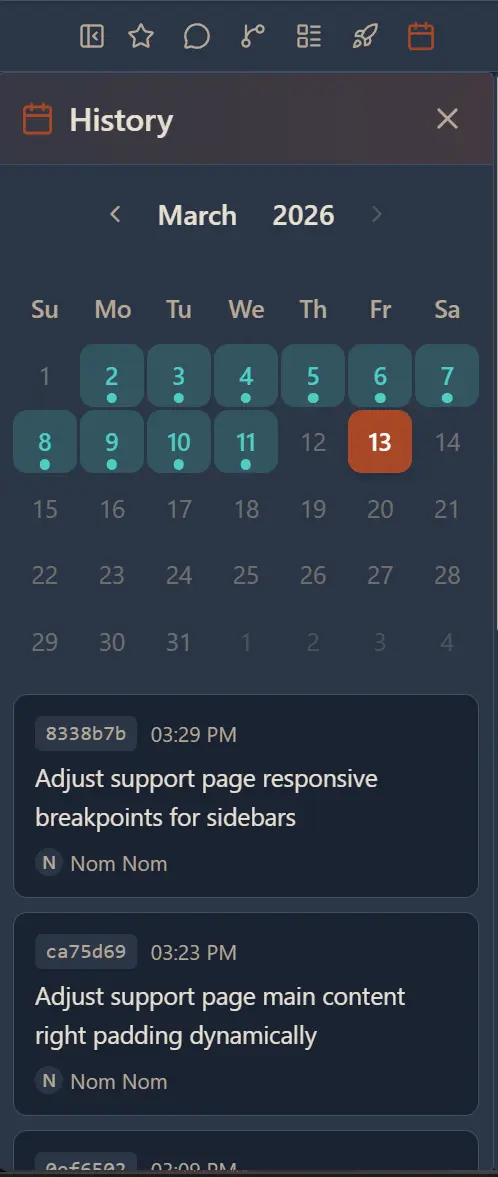
The History Calendar Panel is a sidebar overlay that provides a calendar-based view of your project's history. Browse entries by date, view internal and external context history, and review past AI interactions tied to specific days.
Features
Interactive Calendar
Navigate through months and years with a visual calendar picker. Dates that have history entries are highlighted so you can spot activity at a glance.
Month/Year Picker
Quickly jump to any month and year instead of scrolling one month at a time.
History Tabs
Switch between "GitHub" and "Internal" tabs to view different types of history — git commits and events versus internal AI context entries.
Entry Viewer
Click any highlighted date to see all history entries for that day. Click an individual entry to view its full details.
Context Menu
Right-click entries for quick actions like viewing details or deleting specific history items.
Delete with Confirmation
Remove history entries with a confirmation step to prevent accidental deletion.
Notifications
Toast-style notifications confirm successful actions, errors, or informational messages within the panel.
File Tree Items
Overview
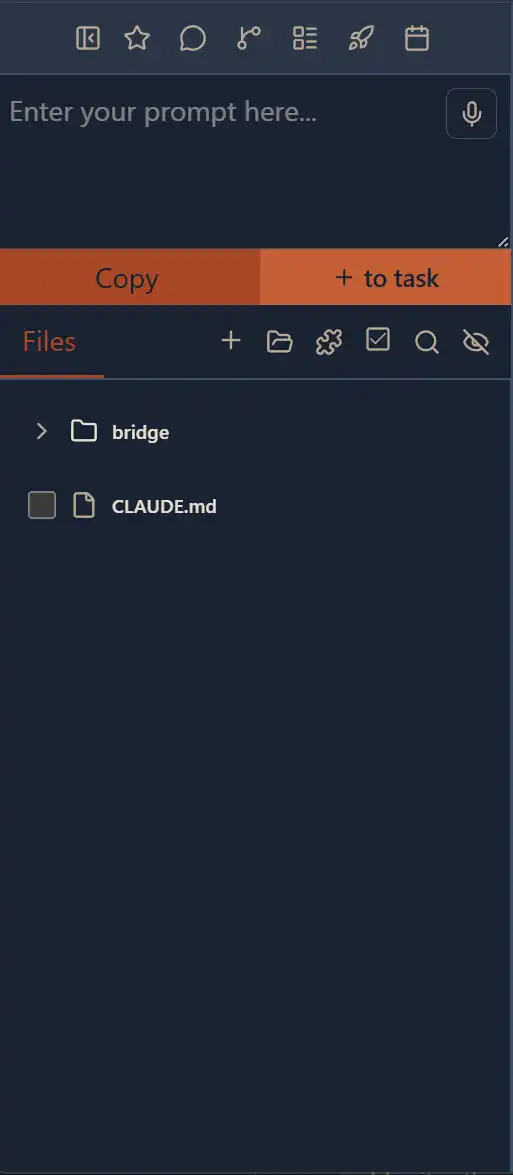
The File Tree is the primary file browser in the project sidebar. It displays your project's directory structure in a recursive, expandable tree view. Each file and folder is rendered with type-specific icons and supports a rich set of interactions.
Features
Recursive Tree View
Folders expand and collapse to reveal their contents. The tree supports deep nesting with a configurable depth limit to maintain performance.
File Type Icons
Each file displays an icon matching its type (e.g., TypeScript, JavaScript, JSON, CSS, images). Folders have distinct open/closed icons.
Drag and Drop
Move files and folders by dragging them to a new location within the tree. Drop targets highlight as you drag.
File Selection
Click a file to select and open it. Use checkboxes for multi-file selection with Shift+Click for range selection.
Context Menu
Right-click any file or folder for quick actions: copy content, add to task, create/edit in editor, refactor, delete, hide, toggle favorite, or download.
Auto-Refresh
Folders are watched for file system changes and automatically refresh when files are added, removed, or modified.
Search Highlighting
When searching, matched file names are highlighted within the tree to help you locate results quickly.
Favorite Toggle
Star icon on each file lets you add or remove it from favorites with instant visual feedback.
Provider Switching
Switch between different source roots or provider paths within a project when multiple are detected.
Prompt Box
Overview
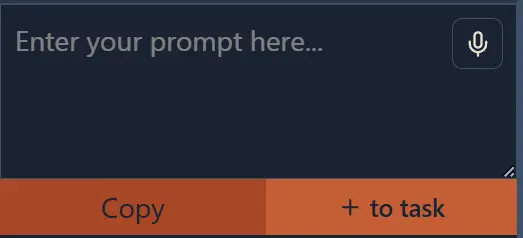
The Prompt Box sits at the top of the file tree and provides quick-access action buttons for common file operations. It includes tools for copying file content, creating tasks from selected files, and managing the file tree display.
Actions
Copy
Copy the content of the currently selected file to your clipboard. Useful for quickly grabbing code to paste into AI chat or another editor.
Add to Task
Create a new task from the selected files. This opens the Task Panel with the chosen files pre-attached as context, letting you define a task name and prompt for AI agents to work on.
Block Group Library
Overview
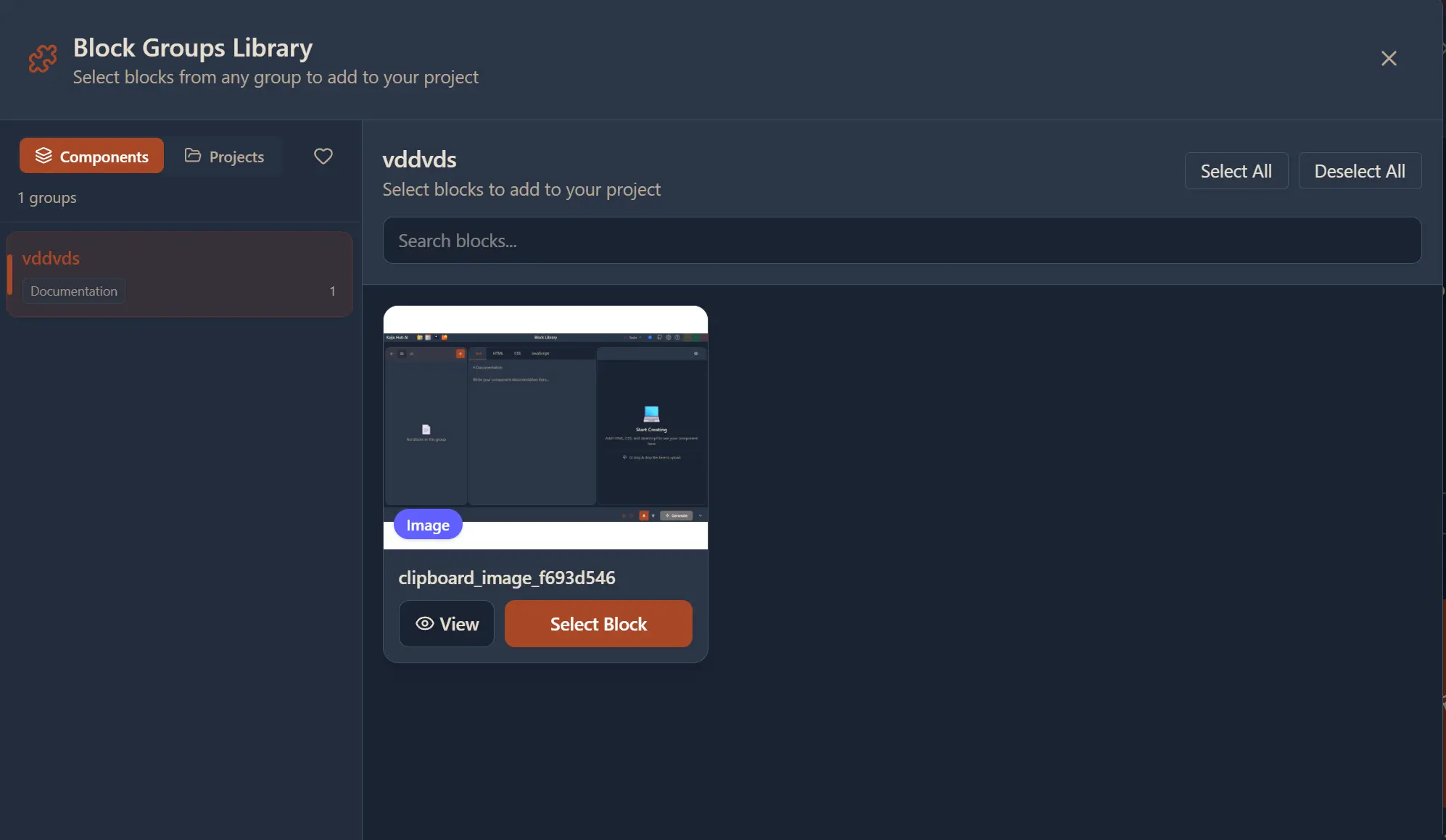
The Block Group Library is a modal accessible from the prompt bar (puzzle icon) that lets you browse, search, and select reusable UI components and blocks to include as context in your AI conversations or tasks. Components are organized by group and can be favorited for quick access.
Features
Component Browsing
Browse all available components and blocks organized by group name. Each component shows a lazy-loaded preview thumbnail.
Search & Filter
Search components by name or description to quickly find what you need. Filter by category or group.
Lazy-Loaded Previews
Component previews load on demand using IntersectionObserver with a 300px preload buffer for smooth scrolling performance.
Component Favorites
Star frequently used components to pin them at the top of the library for quick access.
Detail View
Click any component to open a detail modal showing its full preview, description, and metadata.
Context Selection
Select one or more components to include as context in your AI chat or task. A counter shows how many are currently selected.
Checked Files
Overview
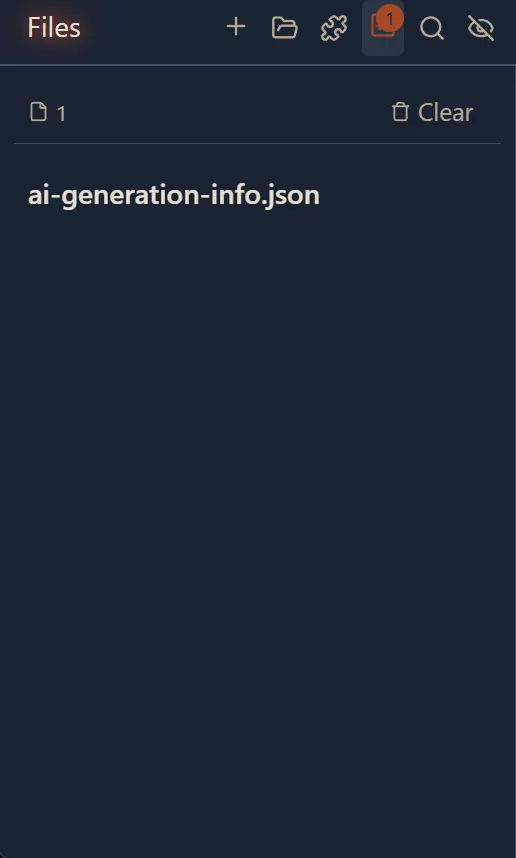
The Checked Files tab (checkbox icon in the prompt bar) displays all files currently selected/checked in the file tree. It provides a consolidated view of your selected context — files, components, and projects — so you can review and manage what will be sent to AI agents.
Features
Selected Files List
View all checked files in an alphabetically sorted list. Each file shows its path relative to the project root.
Component Selection Display
See which components from the Block Group Library are currently selected alongside your checked files.
Project Grouping
When files from multiple selected projects are included, they are grouped under their respective project names.
Remove Individual Files
Click any file to deselect it from the context. Double-click triggers deselection with a cooldown to prevent accidental rapid toggling.
Clear All
A "Clear All" button lets you deselect every checked file at once to start fresh.
Search
Overview
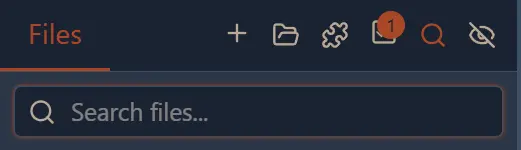
The Search feature (magnifying glass icon in the prompt bar) provides real-time file name filtering within the file tree. As you type, the tree updates instantly to show only matching files, with matched terms highlighted.
Features
Real-Time Filtering
The file tree filters as you type. Only files whose names match your query are shown, making it fast to locate specific files in large projects.
Highlight Matches
Matching portions of file names are visually highlighted with a distinct style so you can easily see why each result matched.
Auto-Expand Folders
When a search query matches files inside collapsed folders, those folders automatically expand to reveal the matching results.
Hidden File Filtering
Search respects your hidden file settings — files you have chosen to hide will not appear in search results.
Hide Files

Overview
The Hide Files feature (eye icon in the prompt bar) lets you toggle visibility of files and folders in the file tree. Hidden files are filtered out of the tree view and search results, keeping your workspace clean and focused on the files that matter.
Features
Eye Toggle
Click the eye/eye-off icon in the prompt bar to toggle the visibility of hidden files. When the eye is closed, hidden files are filtered out.
Path-Based Hiding
Hide files by path pattern. You can hide specific files, entire folders, or groups of files matching a pattern.
Persistent State
Your hidden file settings persist across sessions so you do not need to re-hide the same files every time you open the project.
Context Menu Integration
Right-click any file or folder in the tree and select "Hide" to quickly add it to the hidden files list.