
कैनवास एडिटर
The wireframe editing canvas is where you design and refine your screens. The left sidebar contains all the drawing and selection tools, the center is the canvas where you place and arrange elements, and the right sidebar shows the properties of the selected element.
टूल
चुनें
Click to select and move elements on the canvas. Selected elements show their properties in the right sidebar.
वर्ग
Draw rectangular container elements on the canvas.
वृत्त
Draw circular elements on the canvas.
टेक्स्ट
Add text labels and content blocks.
चित्र
Place image placeholder elements.
बटन
Add interactive button elements.
इनपुट
Add form input fields.
+ (स्क्रीन जोड़ें)
Add a new screen to the wireframe project.
लॉक किए गए तत्व
AI-जनरेटेड स्क्रीन डिफ़ॉल्ट रूप से लॉक होती हैं — तत्वों को अनलॉक होने तक हिलाया या आकार बदला नहीं जा सकता। वर्तमान स्क्रीन पर सभी तत्वों को अनलॉक करने के लिए Ctrl + D दबाएं, जिससे आपको उन्हें पुनर्व्यवस्थित और संपादित करने का पूर्ण नियंत्रण मिलेगा।
स्टोरीबोर्ड मोड
Storyboard mode lets you see all your frames and their connection points in a bird’s-eye view. Toggle between the single-screen canvas and storyboard mode using the same button in the left sidebar. In storyboard mode, each screen is shown as a card with a preview of its layout.
स्टोरीबोर्ड सुविधाएँ
फ्रेम अवलोकन
See all screens at a glance with their element counts and visual previews.
मॉडल सेट करें
Mark any screen as a modal overlay instead of a full page.
संपादित करने के लिए क्लिक करें
Click any frame card to jump into its canvas view for detailed editing.
ज़ूम नियंत्रण
Use the zoom controls on the left to zoom in/out of the storyboard.
फ्लो कनेक्शन
Visualize how screens are connected through flow actions between frames.
तत्व गुण
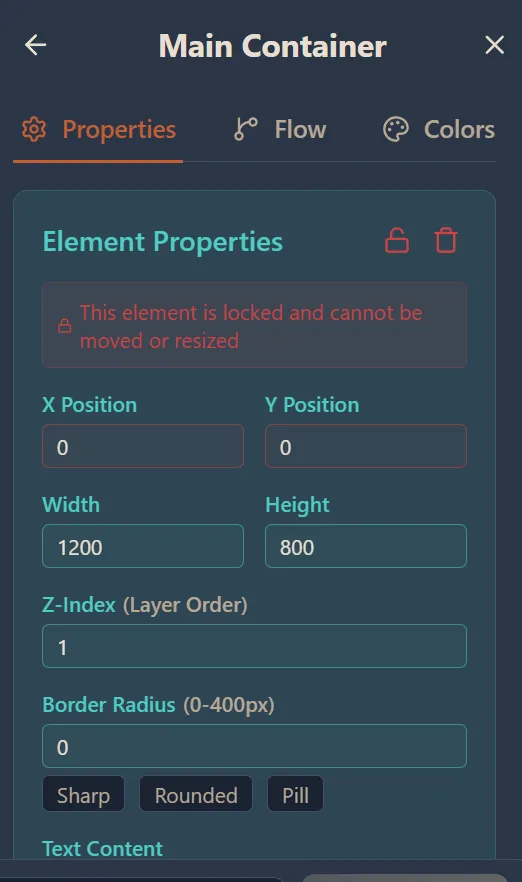
किसी भी कैनवास तत्व में प्रवेश करने और दाएं साइडबार में उसका गुण पैनल खोलने के लिए उस पर डबल-क्लिक करें। पैनल में तीन टैब हैं: गुण, फ़्लो, और रंग। यहां से आप प्रत्येक तत्व की स्थिति, आकार, शैली और व्यवहार को संपादित कर सकते हैं।
गुण टैब
स्थिति (X, Y)
Set the exact pixel position of the element on the canvas.
आकार (चौड़ाई, ऊँचाई)
Set the element\u2019s dimensions in pixels.
Z-Index (लेयर क्रम)
Control which elements appear on top of others.
बॉर्डर रेडियस
Set corner rounding with a numeric value or use the Sharp, Rounded, or Pill presets.
टेक्स्ट सामग्री
Edit the text displayed inside the element.
रंग टैब
Customize background, border, and text colors for the selected element.
फ्लो
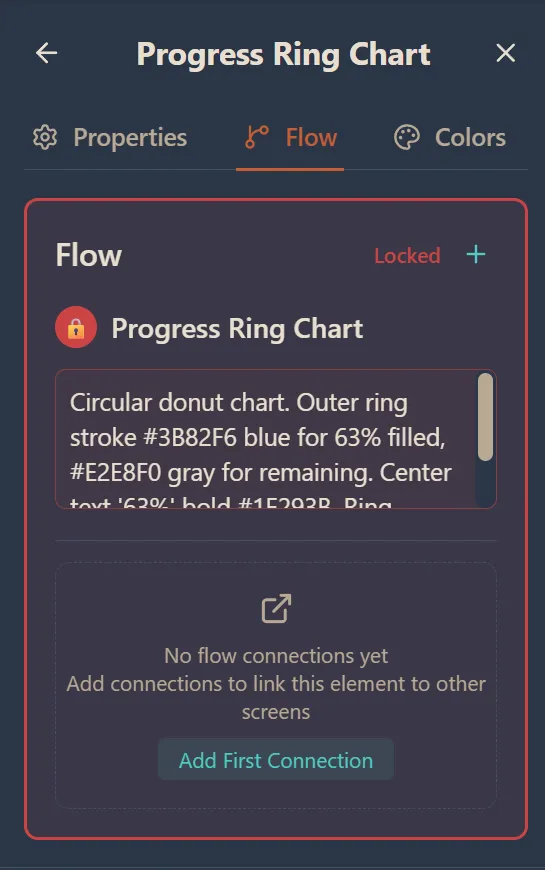
Flows define actions and navigation between screens. A flow is an action such as navigating to another page, opening a modal, or routing to a different area. Small link icons on the canvas indicate which elements have flows attached. Frames are automatically linked between each other during AI generation, and flow connections are created as well.
फ्लो सेटअप करना
एक तत्व चुनें
Click the element you want to add a flow to.
फ्लो टैब खोलें
In the right sidebar, switch to the Flow tab to see existing connections or add new ones.
कनेक्शन जोड़ें
Click Add First Connection (or the + button) to create a new flow. Choose a target screen or frame to link to.
कैनवास पर देखें
Connected elements show a small link icon on the canvas to indicate they have flow actions.
ब्लॉक कनेक्शन
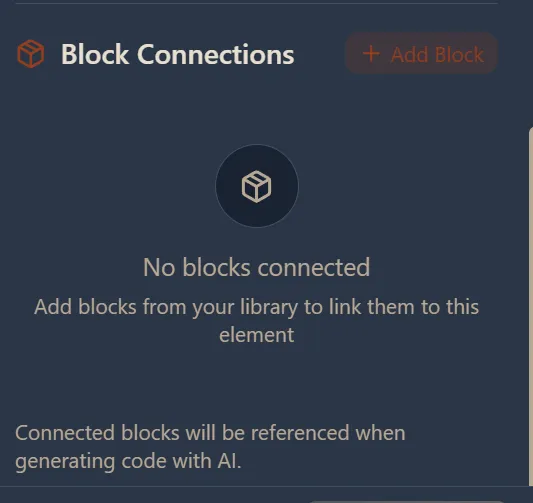
ब्लॉक कनेक्शन आपको ब्लॉक लाइब्रेरी से ब्लॉक को सीधे वायरफ़्रेम तत्वों से जोड़ने की अनुमति देते हैं। जब आप किसी तत्व पर डबल-क्लिक करते हैं और गुण पैनल में नीचे स्क्रॉल करते हैं, तो आपको ब्लॉक कनेक्शन अनुभाग मिलेगा। तत्व से ब्लॉक (HTML, कंपोनेंट, या टेम्पलेट) लिंक करने के लिए + ब्लॉक जोड़ें पर क्लिक करें। कनेक्टेड ब्लॉक AI के साथ कोड जनरेट करते समय संदर्भित किए जाते हैं, जिससे वायरफ़्रेम तत्वों से विशिष्ट HTML या कंपोनेंट कोड जोड़ना आसान हो जाता है।
AI संपादन
कैनवास के निचले भाग में AI प्रॉम्प्ट बार आपको स्क्रीन संपादित या बनाने के लिए AI का उपयोग करने की अनुमति देता है। बाईं ओर ड्रॉपडाउन से अपना AI मॉडल चुनें, अपने इच्छित परिवर्तनों का वर्णन करें, और AI आपके लिए वायरफ़्रेम को संशोधित करेगा। आप उन्नत संपादन के लिए वॉइस इनपुट या CLI संपादन बटन का भी उपयोग कर सकते हैं।
संदर्भ-जागरूक प्रॉम्प्टिंग
एकल स्क्रीन
When editing a single screen, the prompt bar shows "Editing 'Screen Name'" and AI changes apply only to that screen.
स्टोरीबोर्ड
When in storyboard mode, AI can edit all frames at once or build new frames using the existing ones as reference.
वॉइस इनपुट
Use the microphone icon in the prompt bar to dictate your instructions instead of typing.
CLI संपादन
Click CLI Edit for an advanced editing mode with more control over the AI-powered changes.
निर्यात और एकीकरण
वायरफ़्रेम को निर्यात, आयात, या प्रोजेक्ट बनाते समय या प्रोजेक्ट हब के भीतर सीधे उपयोग किया जा सकता है। यह मैन्युअल रूप से डिज़ाइन को फिर से बनाए बिना वायरफ़्रेम डिज़ाइन से कार्यशील प्रोजेक्ट में संक्रमण को आसान बनाता है।