
प्रोजेक्ट साइडबार
अवलोकन
प्रोजेक्ट साइडबार आपके प्रोजेक्ट कार्यक्षेत्र का केंद्रीय नेविगेशन हब है। यह काम करते समय आपको आवश्यक हर प्रमुख टूल और पैनल तक त्वरित पहुँच प्रदान करता है — फ़ाइल प्रबंधन और संस्करण नियंत्रण से लेकर AI चैट सत्र, कार्य ट्रैकिंग, डिप्लॉयमेंट, और अधिक तक। प्रत्येक पैनल स्लाइड-आउट ओवरले के रूप में खुलता है ताकि आप अपने वर्तमान दृश्य को छोड़े बिना टूल के बीच जा सकें।
साइडबार प्रोजेक्ट कार्यक्षेत्र के दाएँ किनारे पर चलता है और प्रत्येक पैनल के लिए आइकन बटन रखता है। किसी आइकन पर क्लिक करने से उस पैनल का ओवरले खुलता है, और फिर से क्लिक करने (या Escape दबाने) से यह बंद हो जाता है। साइडबार हमेशा दिखाई देता है और आपके प्रोजेक्ट के टूलिंग के साथ इंटरैक्ट करने का प्राथमिक तरीका है।
उपलब्ध पैनल
साइडबार में निम्नलिखित पैनल हैं, प्रत्येक नीचे के अनुभागों में विस्तार से प्रलेखित है:
पसंदीदा
तत्काल पहुँच के लिए अपनी सबसे अधिक उपयोग की जाने वाली प्रोजेक्ट फ़ाइलों पर स्टार लगाएँ और व्यवस्थित करें।
चैट
AI चैट समूह, एजेंट सत्र, और वार्तालाप इतिहास प्रबंधित करें।
GitHub
रिपॉजिटरी स्थिति, ब्रांच, कमिट देखें, और पुल रिक्वेस्ट प्रबंधित करें।
कार्य
प्रोजेक्ट कार्यों को ट्रैक करें, प्राथमिकताएँ असाइन करें, और अपना कार्यप्रवाह प्रबंधित करें।
डिप्लॉयमेंट
अपने कॉन्फ़िगर किए गए होस्टिंग प्रदाताओं पर डिप्लॉयमेंट की निगरानी और ट्रिगर करें।
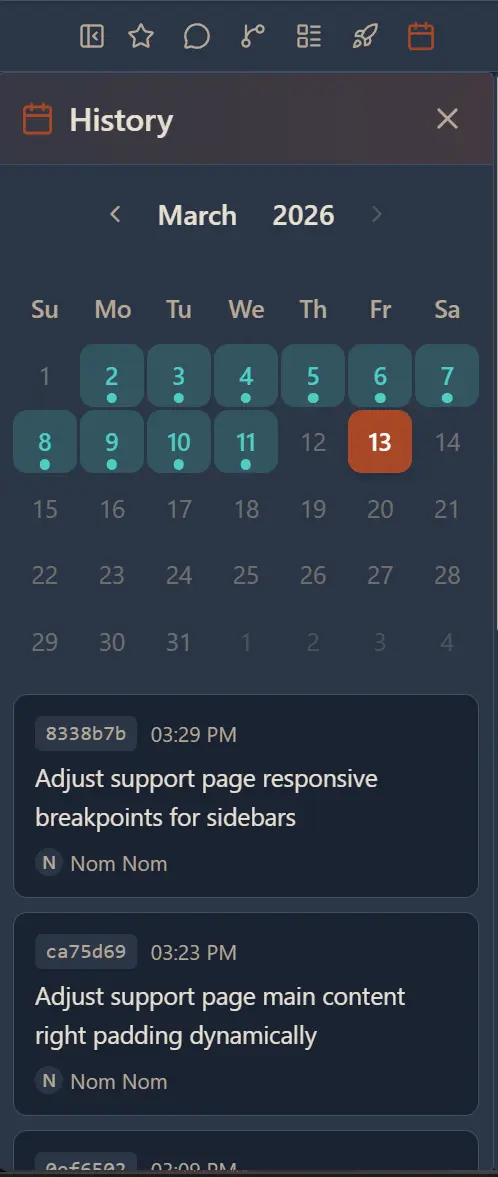
इतिहास कैलेंडर
कैलेंडर टाइमलाइन पर प्रोजेक्ट गतिविधि और फ़ाइल परिवर्तन ब्राउज़ करें।
बिल्ड
अपने प्रोजेक्ट बिल्ड से बिल्ड लॉग, स्थिति, और आउटपुट देखें।
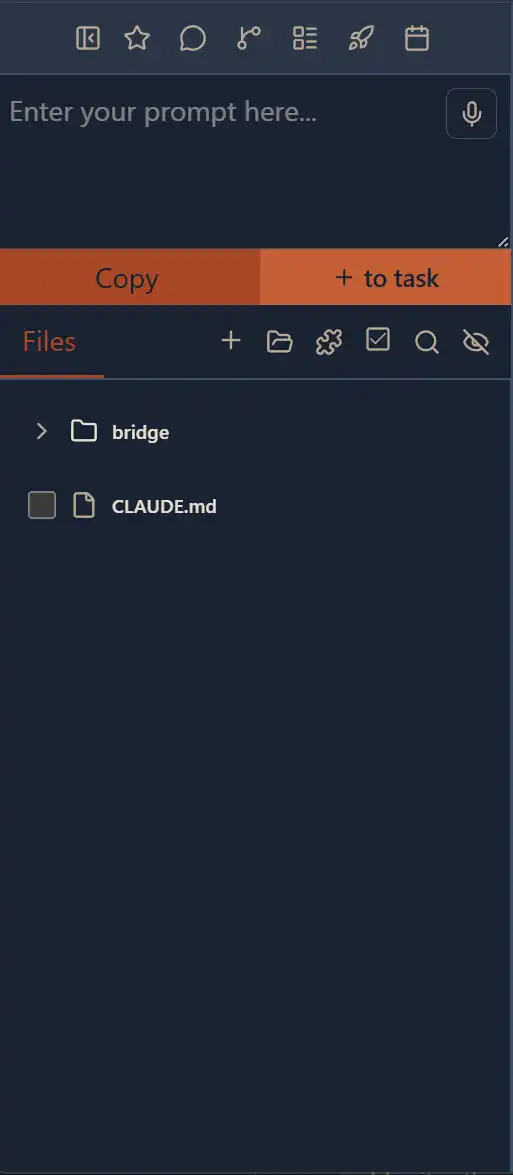
फ़ाइल ट्री
फ़ाइल ट्री प्रदर्शन सेटिंग्स और आइटम-स्तरीय कार्रवाइयाँ प्रबंधित करें।
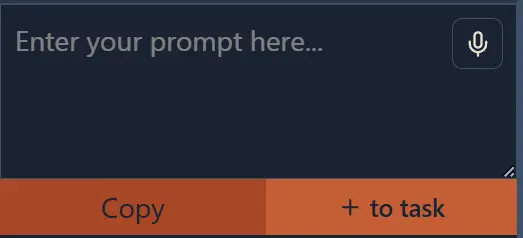
प्रॉम्प्ट बॉक्स
AI एजेंट को निर्देश भेजने के लिए त्वरित-पहुँच प्रॉम्प्ट इनपुट।
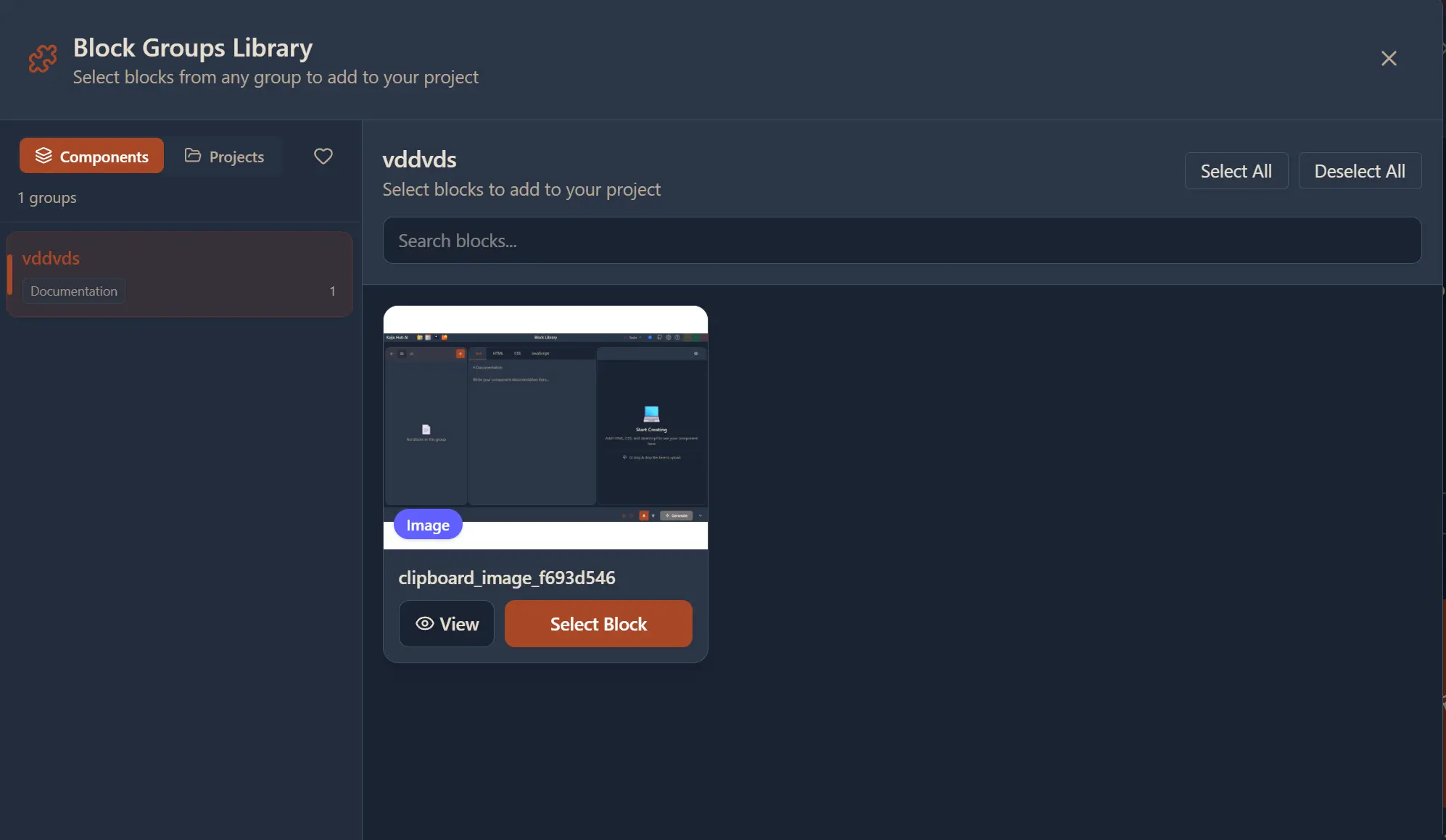
ब्लॉक समूह लाइब्रेरी
अपनी लाइब्रेरी से पुन: प्रयोज्य कंपोनेंट ब्लॉक ब्राउज़ करें और प्रबंधित करें।
चेक की गई फ़ाइलें
वर्तमान में बल्क संचालन के लिए चयनित फ़ाइलें देखें और प्रबंधित करें।
खोज
फ़ाइलों, कोड, और सामग्री के लिए अपने पूरे प्रोजेक्ट में खोजें।
फ़ाइलें छिपाएँ
कॉन्फ़िगर करें कि कौन सी फ़ाइलें और फ़ोल्डर फ़ाइल ट्री से छिपे हैं।
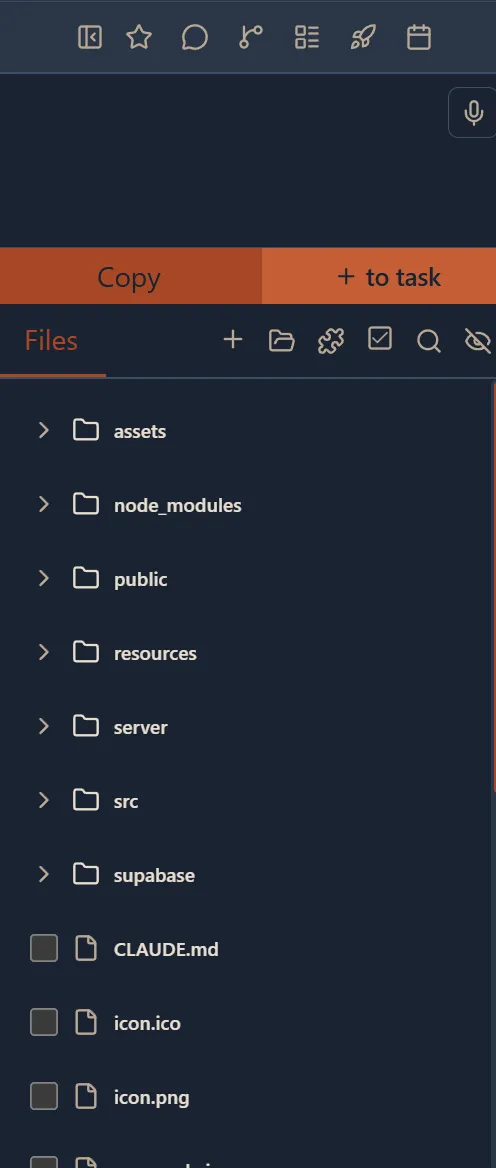
पसंदीदा पैनल
अवलोकन
पसंदीदा पैनल एक साइडबार ओवरले है जो आपको त्वरित पहुँच के लिए अपनी सबसे अधिक उपयोग की जाने वाली प्रोजेक्ट फ़ाइलों पर स्टार लगाने और व्यवस्थित करने देता है। हर बार फ़ाइल ट्री में खोजने के बजाय, महत्वपूर्ण फ़ाइलों को पसंदीदा के रूप में चिह्नित करें और उन्हें तुरंत खोजें।
सुविधाएँ
स्टार टॉगल
किसी भी फ़ाइल पर स्टार आइकन क्लिक करके अपने पसंदीदा में जोड़ें या हटाएँ। स्टार लगी फ़ाइलें त्वरित पहुँच के लिए पसंदीदा पैनल में दिखाई देती हैं।
समूह संगठन
अपनी पसंदीदा फ़ाइलों को कस्टम समूहों में व्यवस्थित करें। समूह स्थानीय रूप से सहेजे जाते हैं ताकि वे सत्रों के बीच बने रहें।
बहु-फ़ाइल चयन
एक साथ कई पसंदीदा फ़ाइलें चुनें और उन सभी को एक कार्य में जोड़ने जैसी बल्क कार्रवाइयाँ करें।
कार्य में जोड़ें
एक या अधिक पसंदीदा फ़ाइलें चुनें और एक क्लिक से उन्हें सीधे कार्य में जोड़ें, अपने कार्यप्रवाह को सुव्यवस्थित करें।
पसंदीदा गणक
एक बैज पसंदीदा फ़ाइलों की कुल संख्या प्रदर्शित करता है ताकि आप हमेशा जानें कि कितनी सहेजी गई हैं।

चैट पैनल
अवलोकन
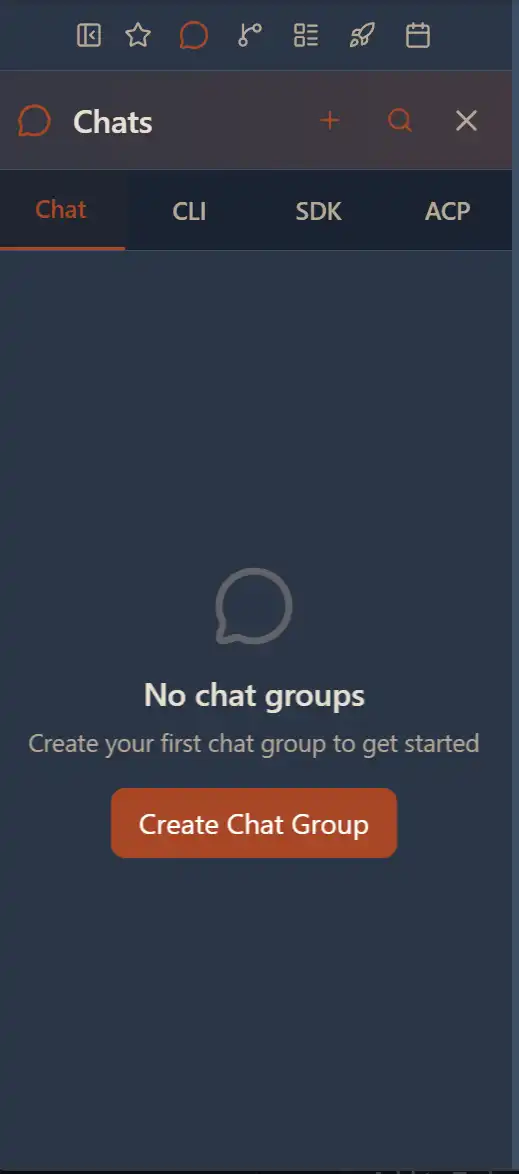
चैट पैनल आपके AI चैट समूहों और एजेंट सत्रों को प्रबंधित करने के लिए एक साइडबार ओवरले है। यह चैट वार्तालाप ब्राउज़ करने, बनाने, संपादित करने और हटाने, साथ ही CLI, SDK, और ACP सत्र लॉग देखने के लिए केंद्रीय स्थान प्रदान करता है।
टैब
चैट
अपने AI चैट समूह ब्राउज़ करें और प्रबंधित करें। नए समूह बनाएँ, उनका नाम बदलें, मौजूदा में खोजें, या जिन वार्तालापों की अब आवश्यकता नहीं है उन्हें हटाएँ।
CLI
Claude Code, Gemini CLI, और Codex CLI जैसे CLI-आधारित एजेंटों से सत्र लॉग देखें। प्रत्येक सत्र ब्रांडेड लोगो के साथ एजेंट प्रकार दिखाता है।
SDK
Claude SDK, Gemini SDK, और OpenAI SDK एकीकरण सहित SDK-आधारित एजेंटों से सत्र लॉग देखें।
ACP
ACP (Agent Communication Protocol) एजेंटों से उनके कॉन्फ़िगरेशन और निष्पादन इतिहास के साथ सत्र लॉग देखें।
सुविधाएँ
चैट समूह CRUD
चैट समूह बनाएँ, नाम बदलें, खोजें, और हटाएँ। प्रत्येक समूह संदर्भ के साथ पूर्ण वार्तालाप थ्रेड रख सकता है।
पृष्ठांकन
सत्र एक बार में 50 आइटम लोड करते हैं जिसमें बड़े इतिहास के लिए "Load More" बटन है।
बहु-चयन
सत्रों में श्रेणी चयन के लिए Shift+Click का उपयोग करें। चयनित आइटम पर बल्क डिलीट या अन्य कार्रवाइयाँ करें।
संदर्भ मेनू
डिलीट या विस्तृत लॉग देखने जैसी त्वरित कार्रवाइयों तक पहुँचने के लिए किसी भी सत्र पर राइट-क्लिक करें।
एजेंट पहचान
प्रत्येक सत्र उपयोग किए गए AI एजेंट (Claude Code, Gemini, Codex, ACP) के लिए ब्रांडेड लोगो प्रदर्शित करता है ताकि आप उन्हें एक नज़र में पहचान सकें।
कार्य पैनल
अवलोकन
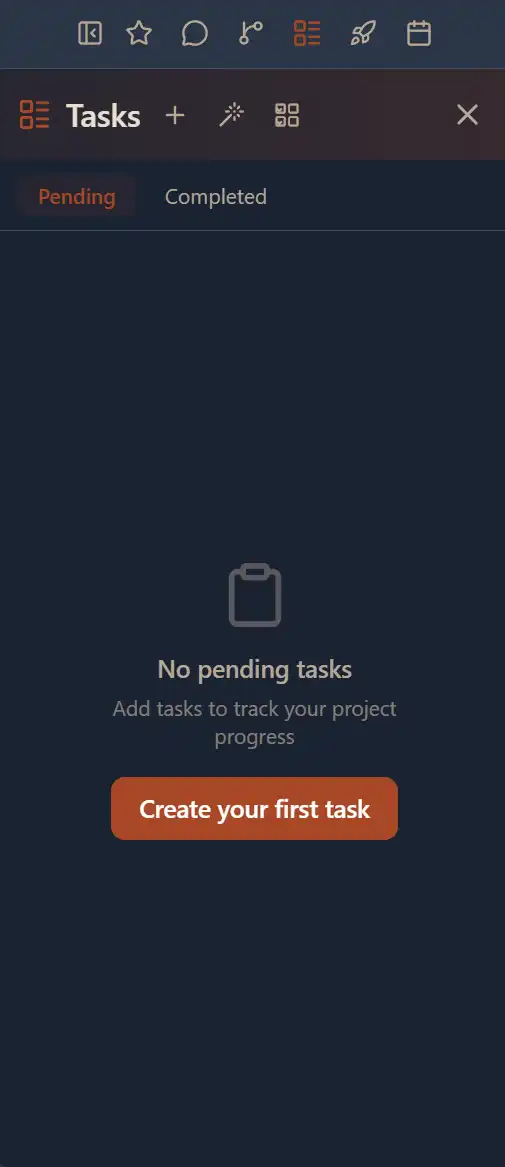
कार्य पैनल प्रोजेक्ट-स्तरीय कार्य बनाने और प्रबंधित करने के लिए साइडबार ओवरले है। प्रत्येक कार्य में एक नाम, प्रॉम्प्ट या निर्देश, और संदर्भ के लिए प्रोजेक्ट फ़ाइलों का चयन शामिल हो सकता है। कार्य आपको कार्य आइटम व्यवस्थित करने और उन्हें सीधे AI एजेंट को फ़ीड करने में मदद करते हैं।
सुविधाएँ
कार्य निर्माण
नाम, प्रॉम्प्ट/निर्देश टेक्स्ट, और चयनित प्रोजेक्ट फ़ाइलों के साथ कार्य बनाएँ। कार्य वर्तमान प्रोजेक्ट तक सीमित हैं।
फ़ाइल ट्री एकीकरण
एक आकार बदलने योग्य फ़ाइल ट्री पैनल आपको कार्य के लिए संदर्भ के रूप में संलग्न करने हेतु प्रोजेक्ट फ़ाइलें ब्राउज़ करने और चुनने देता है।
बहु-फ़ाइल चयन
कार्य में शामिल करने के लिए कई फ़ाइलें चुनें। चयनित फ़ाइलों की सूची व्यक्तिगत आइटम हटाने के विकल्पों के साथ सभी चुनी गई फ़ाइलें दिखाती है।
संदर्भ मेनू
कार्य में जोड़ने या हटाने जैसी त्वरित कार्रवाइयों के लिए कार्य फ़ाइल ट्री में फ़ाइलों पर राइट-क्लिक करें।
फ़ाइल वॉचर
एकीकृत फ़ाइल वॉचर स्वचालित रूप से प्रोजेक्ट फ़ाइलों में परिवर्तनों का पता लगाता है ताकि आपका कार्य संदर्भ अपडेट रहे।
टोस्ट सूचनाएँ
सफल सेव, त्रुटियों, और सूचनात्मक संदेशों के लिए टोस्ट सूचनाओं के माध्यम से दृश्य प्रतिक्रिया।
डिप्लॉयमेंट पैनल
अवलोकन
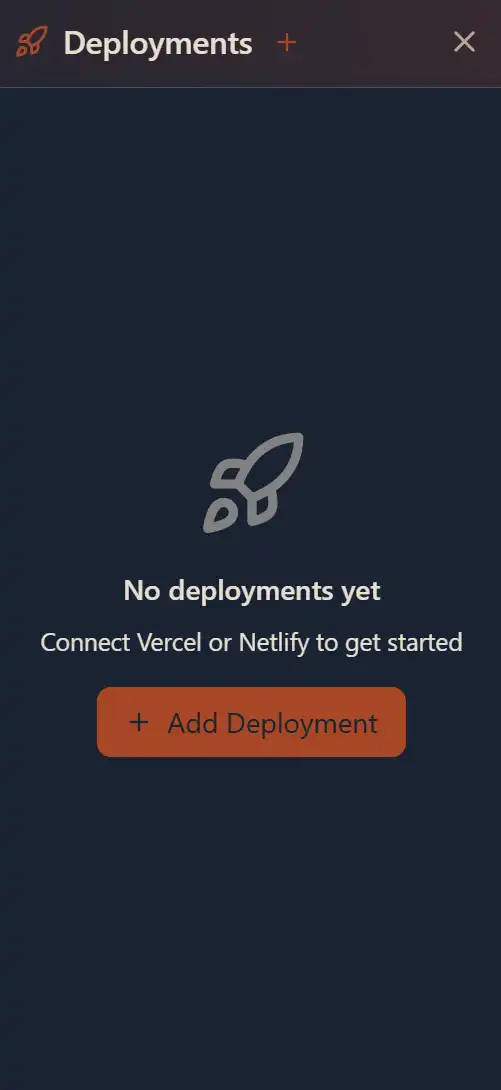
The Deployments Panel is a sidebar overlay for deploying your project to various hosting platforms. The available platforms change depending on your project type, giving you the right deployment options for your stack.
प्रोजेक्ट प्रकार द्वारा प्लेटफ़ॉर्म समर्थन
फ्रंटएंड / वेब ऐप्स
Deploy static sites, SPAs, and SSR applications.
बैकएंड / Python / API प्रोजेक्ट
Deploy server-side applications and APIs.
WordPress प्रोजेक्ट
Distribuisci configurazioni WordPress CMS headless.
सुविधाएँ
डिप्लॉयमेंट CRUD
Create, view, update, and delete deployments. Each deployment tracks its platform, branch, and git repository configuration.
स्वतः-पहचान
Existing deployments connected to your project are automatically detected and listed when you open the panel.
API कुंजी प्रबंधन
Manage API keys for each deployment platform. Keys are stored securely and associated with specific deployments.
प्लेटफ़ॉर्म-विशिष्ट सेटिंग्स
Configure deployment branch, git repository, environment variables, and platform-specific options for each deployment.
सक्रिय डिप्लॉयमेंट संकेतक
The currently active deployment is highlighted so you can see which deployment is live at a glance.
संदर्भ मेनू
Right-click any deployment for quick actions including delete and refresh status.
इतिहास कैलेंडर पैनल
अवलोकन
Il pannello calendario cronologia e un overlay della barra laterale che fornisce una vista basata su calendario della cronologia del tuo progetto. Sfoglia le voci per data, visualizza la cronologia del contesto interno ed esterno e rivedi le interazioni IA passate legate a giorni specifici.
सुविधाएँ
इंटरैक्टिव कैलेंडर
Navigate through months and years with a visual calendar picker. Dates that have history entries are highlighted so you can spot activity at a glance.
माह/वर्ष चयनकर्ता
Quickly jump to any month and year instead of scrolling one month at a time.
इतिहास टैब
Switch between "GitHub" and "Internal" tabs to view different types of history — git commits and events versus internal AI context entries.
प्रविष्टि दर्शक
Click any highlighted date to see all history entries for that day. Click an individual entry to view its full details.
संदर्भ मेनू
Right-click entries for quick actions like viewing details or deleting specific history items.
पुष्टि के साथ हटाएँ
Remove history entries with a confirmation step to prevent accidental deletion.
सूचनाएँ
Toast-style notifications confirm successful actions, errors, or informational messages within the panel.
फ़ाइल ट्री आइटम
अवलोकन
L'albero dei file e il browser di file principale nella barra laterale del progetto. Mostra la struttura delle directory del tuo progetto in una vista ad albero espandibile e ricorsiva. Ogni file e cartella viene visualizzato con icone specifiche per tipo e supporta un ricco set di interazioni.
सुविधाएँ
पुनरावर्ती ट्री व्यू
Folders expand and collapse to reveal their contents. The tree supports deep nesting with a configurable depth limit to maintain performance.
फ़ाइल प्रकार आइकन
Each file displays an icon matching its type (e.g., TypeScript, JavaScript, JSON, CSS, images). Folders have distinct open/closed icons.
ड्रैग और ड्रॉप
Move files and folders by dragging them to a new location within the tree. Drop targets highlight as you drag.
फ़ाइल चयन
Click a file to select and open it. Use checkboxes for multi-file selection with Shift+Click for range selection.
संदर्भ मेनू
Right-click any file or folder for quick actions: copy content, add to task, create/edit in editor, refactor, delete, hide, toggle favorite, or download.
स्वतः-रिफ्रेश
Folders are watched for file system changes and automatically refresh when files are added, removed, or modified.
खोज हाइलाइटिंग
When searching, matched file names are highlighted within the tree to help you locate results quickly.
पसंदीदा टॉगल
Star icon on each file lets you add or remove it from favorites with instant visual feedback.
प्रदाता स्विचिंग
Switch between different source roots or provider paths within a project when multiple are detected.
प्रॉम्प्ट बॉक्स
अवलोकन
The Prompt Box sits at the top of the file tree and provides quick-access action buttons for common file operations. It includes tools for copying file content, creating tasks from selected files, and managing the file tree display.
कार्रवाइयाँ
कॉपी
Copy the content of the currently selected file to your clipboard. Useful for quickly grabbing code to paste into AI chat or another editor.
कार्य में जोड़ें
Create a new task from the selected files. This opens the Task Panel with the chosen files pre-attached as context, letting you define a task name and prompt for AI agents to work on.
ब्लॉक समूह लाइब्रेरी
अवलोकन
The Block Group Library is a modal accessible from the prompt bar (puzzle icon) that lets you browse, search, and select reusable UI components and blocks to include as context in your AI conversations or tasks. Components are organized by group and can be favorited for quick access.
सुविधाएँ
कंपोनेंट ब्राउज़िंग
Browse all available components and blocks organized by group name. Each component shows a lazy-loaded preview thumbnail.
खोज और फ़िल्टर
Search components by name or description to quickly find what you need. Filter by category or group.
लेज़ी-लोडेड प्रीव्यू
Component previews load on demand using IntersectionObserver with a 300px preload buffer for smooth scrolling performance.
कंपोनेंट पसंदीदा
Star frequently used components to pin them at the top of the library for quick access.
विस्तृत दृश्य
Click any component to open a detail modal showing its full preview, description, and metadata.
संदर्भ चयन
Select one or more components to include as context in your AI chat or task. A counter shows how many are currently selected.
चेक की गई फ़ाइलें
अवलोकन
The Checked Files tab (checkbox icon in the prompt bar) displays all files currently selected/checked in the file tree. It provides a consolidated view of your selected context — files, components, and projects — so you can review and manage what will be sent to AI agents.
सुविधाएँ
चयनित फ़ाइलों की सूची
View all checked files in an alphabetically sorted list. Each file shows its path relative to the project root.
कंपोनेंट चयन प्रदर्शन
See which components from the Block Group Library are currently selected alongside your checked files.
प्रोजेक्ट समूहन
When files from multiple selected projects are included, they are grouped under their respective project names.
व्यक्तिगत फ़ाइलें हटाएँ
Click any file to deselect it from the context. Double-click triggers deselection with a cooldown to prevent accidental rapid toggling.
सभी साफ़ करें
A "Clear All" button lets you deselect every checked file at once to start fresh.

खोज

अवलोकन
The Search feature (magnifying glass icon in the prompt bar) provides real-time file name filtering within the file tree. As you type, the tree updates instantly to show only matching files, with matched terms highlighted.
सुविधाएँ
रियल-टाइम फ़िल्टरिंग
The file tree filters as you type. Only files whose names match your query are shown, making it fast to locate specific files in large projects.
मिलान हाइलाइट करें
Matching portions of file names are visually highlighted with a distinct style so you can easily see why each result matched.
फ़ोल्डर स्वतः-विस्तारित करें
When a search query matches files inside collapsed folders, those folders automatically expand to reveal the matching results.
छिपी फ़ाइल फ़िल्टरिंग
Search respects your hidden file settings — files you have chosen to hide will not appear in search results.
फ़ाइलें छिपाएँ

अवलोकन
The Hide Files feature (eye icon in the prompt bar) lets you toggle visibility of files and folders in the file tree. Hidden files are filtered out of the tree view and search results, keeping your workspace clean and focused on the files that matter.
सुविधाएँ
आँख टॉगल
Clicca l'icona occhio/occhio chiuso nella barra prompt per attivare/disattivare la visibilita dei file nascosti. Quando l'occhio e chiuso, i file nascosti vengono filtrati.
पथ-आधारित छिपाना
Hide files by path pattern. You can hide specific files, entire folders, or groups of files matching a pattern.
स्थायी स्थिति
Your hidden file settings persist across sessions so you do not need to re-hide the same files every time you open the project.
संदर्भ मेनू एकीकरण
Right-click any file or folder in the tree and select "Hide" to quickly add it to the hidden files list.